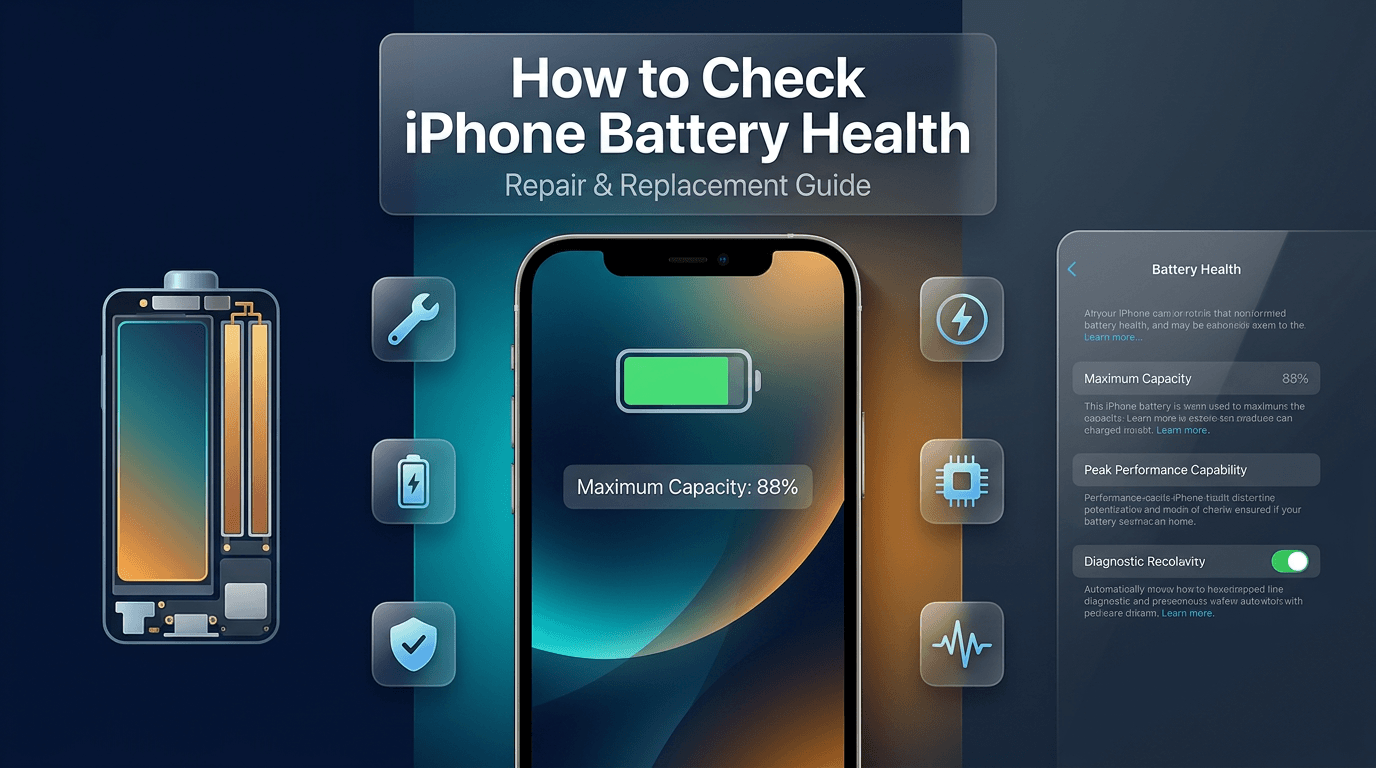
Your iPhone is one of the most important tools you carry every day. It handles your calls, messages, navigation, banking, photography, and countless other functions. At the heart of all that capability is a lithium-ion battery — a component that is often overlooked until something goes wrong. When your battery starts to fail, every part of your iPhone experience begins to suffer. Apps become sluggish, charge levels drop unpredictably, and your phone may shut off without warning even when it shows 30% remaining.
Understanding how to check iPhone battery health is one of the most practical skills any iPhone owner can develop. It is not complicated, and it does not require any technical expertise. But the knowledge it gives you is genuinely powerful. Knowing the state of your battery allows you to make informed decisions about whether to optimize your usage habits, schedule an iPhone battery replacement, or simply monitor the situation over time. This guide will walk you through every aspect of battery health — from checking it in settings, to identifying warning signs, to understanding when professional repair is the right move.
What Is iPhone Battery Health and Why Does It Matter
Before getting into how to check your battery health, it helps to understand what battery health actually means and why Apple built this feature into the operating system in the first place.
Every iPhone battery is rated for a certain number of charge cycles. A charge cycle is completed when you have used a total of 100% battery capacity — this does not mean a single full charge from 0% to 100%, but rather the cumulative usage across multiple partial charges. For example, if you charge your phone from 50% to 100% twice, that counts as one full charge cycle. Apple designs iPhone batteries to retain up to 80% of their original capacity at 500 complete charge cycles under normal conditions.
Battery health, expressed as a percentage, tells you what proportion of the original maximum capacity your battery can still hold. A brand-new battery has a maximum capacity of 100%. As charge cycles accumulate and the battery ages, that capacity decreases. A battery at 90% health can hold 90% of what it once could, meaning it will not last as long on a single charge as it did when the phone was new.
This matters for a specific reason that goes beyond just runtime. Apple introduced performance management features starting with iOS 11.3, partly in response to controversy over how older iPhones handled battery degradation. When a battery's health drops significantly, it becomes less capable of delivering the high current bursts that demanding apps and processes require. To compensate, the system may throttle the processor to prevent unexpected shutdowns. This is why an older iPhone with a degraded battery can feel noticeably slower — the phone is essentially protecting itself.
Monitoring your iPhone battery health maximum capacity regularly gives you a clear picture of where your device stands and what to expect from it going forward.
How to Check iPhone Battery Health Using Built-In Settings
Apple provides a straightforward, built-in way to access your battery diagnostics directly from your iPhone. You do not need any third-party apps or external tools to get started. Here is a detailed walkthrough of how to access this information.
Step 1: Open Settings
Unlock your iPhone and tap the Settings app. This is the gray icon with gears on your home screen or app library.
Step 2: Scroll to Battery
Scroll down until you see the Battery option. Tap on it to open the battery settings menu. This screen shows you general usage information and a graph displaying your battery level over the last 24 hours or the last 10 days.
Step 3: Tap Battery Health and Charging
Inside the Battery menu, tap on Battery Health and Charging. On older versions of iOS (below iOS 16), this option may simply appear as Battery Health.
Step 4: Review Your Maximum Capacity
The first and most important number on this screen is Maximum Capacity. This percentage is your iPhone battery health maximum capacity reading. It tells you exactly how much charge your battery can hold compared to when it was new.
Step 5: Check Performance Management
Below the maximum capacity reading, you will see a note about Peak Performance Capability. If your battery is healthy, it will say your iPhone is functioning normally. If Apple's performance management feature has been applied due to battery degradation, it will say so here, along with a note that the system may slow down the processor to prevent unexpected shutdowns.
Step 6: Check for Service Recommendations
If your battery is significantly degraded, you may see an iPhone battery service warning displayed in this section. This is Apple's way of telling you directly that the battery should be evaluated or replaced.
This entire process takes less than a minute, and the information it provides is immediately actionable. If your maximum capacity is at or above 80%, your battery is generally considered healthy. If it has dropped below 80%, that is when the conversation around replacement becomes serious.
What the Numbers Mean: Understanding Your Battery Health Percentage
Seeing a number on a screen is only useful if you know how to interpret it. Here is a detailed breakdown of what different battery health percentages actually mean for your device and your daily experience.
100% to 90%: Your battery is in excellent condition. You should experience runtime and performance comparable to a new device. Continue with normal usage habits and focus on maintaining good charging practices to slow degradation over time.
89% to 80%: This range is considered acceptable but declining. You may start noticing that your iPhone does not last quite as long on a single charge as it used to. Performance should still be solid, but the downward trend means a replacement may become relevant within the next several months depending on your usage.
79% and below: This is the threshold at which Apple considers the battery to be significantly degraded. At this point, an iPhone battery service warning is likely to appear in your settings. The phone may experience unexpected shutdowns, sluggish performance, and unreliable charge level readings. iPhone battery health below 80 is the generally accepted benchmark for when replacement becomes necessary.
Below 70%: At this level, the battery is severely degraded. Users typically report that the phone barely lasts a few hours on a single charge, overheats during light tasks, and shuts down unpredictably even at higher charge percentages. This level of degradation significantly impacts usability, and immediate replacement is strongly recommended.
It is worth noting that the iOS battery health reading does not always tell the full story. Some batteries can show 85% capacity but still exhibit erratic behavior due to cell damage or chemical degradation that the software cannot fully detect. If your battery health looks moderate but you are experiencing serious performance problems, a diagnostic check at a reputable iPhone repair service can provide a more complete picture.
Common Signs That Your iPhone Battery Needs Replacement
Your iPhone will often tell you something is wrong long before you check the settings. Knowing what to look for can save you frustration and help you avoid the situation where your phone dies at the worst possible moment.
Rapid Battery Drain
One of the most universally reported symptoms is an iPhone battery draining fast. If your battery drops from 80% to 20% in just a couple of hours under normal, moderate usage, that is not normal behavior. A healthy battery should sustain a full day of typical use for most people. Rapid drain is one of the clearest early signs that capacity has declined or the battery cells are failing.
Unexpected Shutdowns
When a battery can no longer deliver the surge of current that certain apps or processes demand, the iPhone may shut down abruptly to protect its internal components. This can happen at 20%, 30%, or even higher charge levels. If your iPhone shuts off and then turns back on immediately when you plug it in — sometimes showing the same or a higher battery percentage — the battery is almost certainly failing.
Battery Percentage Jumping Erratically
A battery that jumps from 45% to 10% in seconds, or reads 20% and then suddenly shows 5% without any significant use, has degraded cells that can no longer provide accurate or stable power delivery. This is a symptom of deep chemical degradation inside the battery.
iPhone Not Holding Charge
If your iPhone battery not holding charge becomes a daily problem — meaning the phone needs to be charged multiple times throughout the day just to remain functional — the battery has likely lost significant capacity and is no longer fit for regular use without replacement.
Overheating During Normal Use
An iPhone overheating battery issue is a serious warning sign. Batteries generate heat during charging and discharging, but a healthy battery manages this within safe limits. If your iPhone becomes uncomfortably warm during casual browsing, video calls, or even while sitting idle, the battery may be stressed or degraded. Excessive heat also accelerates further battery damage, creating a destructive cycle.
Physical Battery Swelling
This is perhaps the most alarming symptom. iPhone battery swelling signs include a screen that appears to be pushing away from the body of the device, a back panel that is no longer flat, or a visible gap between the display and the frame. A swollen battery is a chemical reaction gone wrong inside the battery cell. This is a safety hazard that requires immediate attention. Do not attempt to charge or use a phone with a visibly swollen battery. Take it to a qualified iPhone repair technician without delay.
iPhone Battery Cycle Count: What It Is and How to Access It
Beyond the percentage reading in your settings, the iPhone battery cycle count is a more technical metric that shows exactly how many charge cycles your battery has completed. While iOS does not display this number directly in the standard settings interface, there are two reliable ways to access it.
Method 1: iPhone Analytics Data
Go to Settings, then Privacy and Security, then Analytics and Improvements, then Analytics Data. Inside this folder, look for files that begin with "Analytics" followed by a date. Open one of the more recent files and search for the term "BatteryCycleCount." The number next to this field is your current battery cycle count. This method requires scrolling through a dense log file, which can be tedious.
Method 2: Third-Party Diagnostic Apps
Several reputable apps on the App Store, such as coconutBattery (when paired with a Mac) or iMazing, can pull detailed battery diagnostics from your iPhone including cycle count, design capacity, and current maximum capacity in milliampere-hours (mAh). These tools provide a more complete picture than the iOS settings alone.
Understanding your cycle count helps contextualize your battery health percentage. A battery showing 82% capacity at 300 cycles is aging faster than expected. A battery at 82% with 450 cycles is degrading at a more typical pace. This data helps both you and an iPhone repair technician assess the true condition of the battery and make a more informed recommendation.
How iOS Updates Affect iPhone Battery Health
Many iPhone users notice changes in battery performance after updating to a new version of iOS, and this is a topic worth addressing in detail. Checking your iPhone battery health after iOS update is something that many people do — and for good reason.
Major iOS updates frequently optimize background processes, which can actually improve battery efficiency on some devices. However, on older hardware, new software demands more from the processor and system resources, which can place greater strain on an already-aging battery. This can make a degraded battery feel like it has gotten significantly worse after an update, even if the battery health percentage has not changed dramatically.
There is also a firmware update element to consider. Apple periodically updates the battery management firmware alongside iOS, which can recalibrate how the operating system reads and reports battery capacity. Some users report a temporary drop or spike in their reported battery health percentage after major updates, which typically stabilizes over a few charge cycles.
If you notice a significant drop in battery performance immediately following an iOS update, give it three to five full charge cycles before drawing conclusions. If performance does not normalize, check your maximum capacity in settings and consider having your battery evaluated by a professional.
iPhone Battery Calibration: Does It Still Work?
iPhone battery calibration is a concept that has circulated in tech communities for years, and many users still ask whether it is effective on modern iPhones.
Calibration, in the traditional sense, involves fully draining the battery to 0%, leaving it off for a period, and then charging it back to 100% without interruption. The idea behind this practice is that it helps the software accurately track the true capacity of the battery. On older nickel-cadmium batteries, this was genuinely useful. On modern lithium-ion batteries, the benefit is more limited.
That said, Apple does recommend an occasional full-drain-to-full-charge cycle as a way of recalibrating the battery percentage gauge. This does not improve the actual capacity of the battery, but it can help the iOS battery management system more accurately reflect where the charge level truly stands. This is particularly useful if you are seeing erratic percentage jumps or if your iPhone shuts down unexpectedly at higher charge levels.
To calibrate your iPhone battery properly, use your phone normally until it shuts off from battery depletion. Leave it off for 30 minutes, then plug it in to a wall charger and charge it uninterrupted to 100%. Keep it plugged in for an additional hour after reaching 100% to ensure the charge is fully stabilized. After a couple of normal charge cycles, your battery percentage readings should be more accurate and reliable.
Calibration is not a substitute for battery replacement. It is a maintenance step, not a repair solution.
iPhone Battery Health Tips and Optimization Strategies
Extending the lifespan of your battery is largely about managing heat, charge levels, and usage habits. These iPhone battery optimization tips are practical, evidence-based, and worth incorporating into your daily routine.
Avoid Extreme Temperatures
Lithium-ion batteries are sensitive to heat and cold. Sustained exposure to temperatures above 35°C (95°F) causes permanent capacity loss. Cold temperatures below 0°C (32°F) can cause temporary performance drops but generally do not cause permanent damage if the battery is warmed before charging. Keep your iPhone away from direct sunlight, dashboards in hot weather, and other heat sources.
Enable Optimized Battery Charging
In the Battery Health and Charging settings, there is an option called Optimized Battery Charging. When enabled, your iPhone learns your typical daily charging patterns and delays charging past 80% until it predicts you will need a full charge. This reduces the amount of time the battery spends at 100%, which is one of the conditions that accelerates lithium-ion degradation. This is one of the most effective iPhone battery maintenance tips Apple has implemented.
Avoid Frequent Full Discharges
Unlike older battery chemistries, lithium-ion batteries prefer partial discharges. Allowing your phone to routinely hit 0% before charging adds stress to the battery cells. Ideally, charge your iPhone when it drops to around 20% and disconnect it before or shortly after it reaches 100%.
Reduce Screen Brightness and Background Activity
High screen brightness and background app refresh are among the biggest contributors to battery drain. Reducing brightness, enabling Auto-Brightness, and limiting background refresh for apps you do not use frequently can meaningfully extend daily battery life and reduce the number of charge cycles accumulated per day.
Avoid Wireless Charging for Extended Sessions
While wireless charging is convenient, it generates more heat than wired charging, and that additional heat has a cumulative effect on battery health over time. For overnight charging or lengthy sessions, a wired charger with an Apple-certified or MFi-certified cable is preferable.
DIY iPhone Battery Replacement: What You Need to Know
Some iPhone users are comfortable with hands-on repair work, and there is a growing movement toward DIY phone repair, including battery replacement. Understanding the risks and requirements is essential before attempting this yourself.
Apple has made it increasingly possible for technically minded users to perform their own battery replacements through its Self Repair Program, which provides access to genuine Apple parts and the specialized tools required. Outside of this program, third-party parts and toolkits are widely available, though their quality varies considerably.
What You Will Need:
- A replacement battery compatible with your specific iPhone model
- A pentalobe screwdriver (for the bottom screws)
- A Y000 tri-point screwdriver (for internal brackets)
- Suction cups and plastic pry tools
- An adhesive pull tab or adhesive strips
- A spudger tool for disconnecting connectors
- Anti-static equipment
The Basic Process:
- Power off the iPhone completely before beginning.
- Remove the two pentalobe screws at the bottom of the device.
- Apply gentle heat to the bottom edge of the screen using a heat mat or hair dryer to soften the adhesive.
- Use suction cups and pry tools to carefully lift the screen from the frame. Work slowly and never force it — the display cable runs along one side and can be torn if the screen is opened from the wrong angle.
- Disconnect the battery connector before touching any other internal components.
- Remove the internal bracket over the battery connector.
- Pull the adhesive tabs beneath the battery to loosen it from the chassis.
- Seat the new battery, reconnect the connector, and reassemble in reverse order.
This process is manageable for someone with patience and steady hands, but it carries real risks. One mistake can damage the display, tear a connector, or worse — puncture the battery, which can cause fire or chemical leakage. If you feel uncertain at any stage, stopping and seeking professional help is always the right call.
A comparison between DIY and professional battery replacement is helpful when making this decision:
DIY vs. Professional iPhone Battery Replacement
| Factor |
DIY Replacement |
Professional Repair Service |
| Cost |
Lower (parts only, $20–$60) |
Moderate to higher ($49–$99+) |
| Risk Level |
Medium to high |
Low |
| Battery Quality |
Variable (depends on source) |
Genuine or certified quality |
| Warranty |
None on parts or labor |
Often 90 days to 1 year |
| Time Required |
1–3 hours (for beginners) |
Typically 30–60 minutes |
| Diagnostic Support |
Limited to visual checks |
Full software and hardware diagnostics |
| Tools Required |
Specialized toolkit needed |
Already equipped |
| Recommended For |
Experienced, confident users |
Most users, complex cases |
When to Seek Professional iPhone Battery Repair Services
Knowing when to stop troubleshooting on your own and hand the device over to a professional is one of the most valuable pieces of knowledge in this guide. There are several specific situations where professional intervention is not just recommended — it is necessary.
If your iPhone battery is swollen, do not attempt any form of DIY repair. A swollen battery is a pressurized, chemically unstable component. Puncturing or improperly handling it can result in fire, chemical burns, or toxic fume exposure. Take it to a qualified repair shop immediately and avoid charging the device in the meantime.
If your iPhone is still under Apple's warranty or covered by AppleCare+, getting a replacement through Apple's official service is likely your most cost-effective option. Apple's own battery replacement service offers a guaranteed genuine part and maintains your warranty status.
If you have an older model that is no longer covered by warranty but still functions well otherwise, a reliable third-party iPhone repair service is an excellent option that typically costs less than going directly through Apple. Many independent repair shops use high-quality batteries and offer their own service warranties.
If your battery symptoms are accompanied by other issues — such as charging port problems, software glitches, or touchscreen irregularities — a professional technician can evaluate everything together and provide a comprehensive repair plan rather than addressing one issue while missing others.
The quality of the battery used in a replacement matters significantly. A genuine iPhone battery replacement using OEM or certified components will provide performance and longevity much closer to the original. Budget batteries from unverified sources may show a lower cost upfront but tend to degrade faster, which means you end up replacing again sooner.
iPhone Battery Replacement Cost: What to Expect
Understanding the iPhone battery replacement cost before walking into a repair shop helps you budget appropriately and avoid overpaying. Costs vary based on the repair provider, the iPhone model, and the quality of the replacement battery.
Here is a general breakdown of typical pricing across different service channels:
iPhone Battery Replacement Cost Comparison by Service Provider
| Service Provider |
Estimated Cost |
Battery Quality |
Warranty |
Turnaround Time |
| Apple Authorized Service |
$49–$99 |
Genuine Apple |
Covered under Apple policy |
Same day to 3 days |
| Reputable Independent Shop |
$39–$80 |
OEM or certified |
90 days to 1 year |
30–60 minutes |
| Mail-In Repair Service |
$35–$75 + shipping |
Varies |
Varies |
3–7 business days |
| DIY (Parts Only) |
$15–$60 |
Highly variable |
None |
1–3 hours of your time |
Prices also vary by iPhone model. Older models like the iPhone 8 or X tend to have lower replacement costs due to part availability and simpler construction. Newer models like the iPhone 15 Pro or 15 Pro Max involve more complex disassembly and command higher labor rates.
It is worth asking any repair shop directly about the source of their replacement batteries before agreeing to a repair. A reputable shop will be transparent about whether they use OEM, Apple-genuine, or aftermarket parts, and they should be willing to back their work with a service warranty.
iPhone Battery Charging Issues and How to Troubleshoot Them
Not all battery-related problems are caused by the battery itself. iPhone battery charging issues are sometimes the result of a faulty cable, a dirty charging port, a software bug, or a damaged charging adapter — and ruling these out before replacing the battery can save you both time and money.
Check the Charging Cable and Adapter
Begin with the simplest possibility: your charging cable or power adapter may be faulty. Try a different Apple-certified cable and adapter. Non-certified accessories can cause erratic charging behavior, including slow charging, failure to charge, or intermittent connection issues.
Clean the Charging Port
The Lightning or USB-C port on your iPhone accumulates lint, dust, and debris over time, which can prevent a proper connection with the charging cable. Use a dry, non-metallic tool — a wooden toothpick or a plastic SIM ejector pin — to gently clear debris from the port. Never use metal objects, compressed air at close range, or water. If the port is visibly damaged or the connection still feels loose after cleaning, the port itself may need to be repaired or replaced.
Restart the iPhone
A simple restart can resolve software-related charging anomalies. Power the device off completely, wait 30 seconds, and power it back on before attempting to charge again.
Try a Different Power Source
Charging from a computer USB port is slower and sometimes insufficient for proper charging. Use a wall adapter with appropriate wattage. Using Apple's recommended wattage for fast charging can also help ensure the battery charges properly and consistently.
Reset All Settings
If charging issues are software-related, resetting all settings (not erasing all content) can help. Go to Settings, General, Transfer or Reset iPhone, and then Reset All Settings. This will not delete your data but will reset network configurations, display brightness, and other system preferences.
If none of these steps resolve the problem, the issue may lie with the battery itself, the charging port hardware, or a component on the logic board. At that point, professional diagnostics are the appropriate next step.
How to Find a Trusted iPhone Battery Repair Shop Near You
When searching for iPhone battery repair near me, the number of options can feel overwhelming. Not all repair shops deliver the same quality of service, and making the wrong choice can result in further damage, voided warranties, or wasted money. Here are the key factors to evaluate when choosing a repair provider.
Check for Certifications and Affiliations
Look for shops that are Apple Authorized Service Providers or that employ technicians certified by recognized programs such as CompTIA A+ or manufacturer-specific certifications. These credentials indicate a baseline level of training and accountability.
Read Reviews and Testimonials
Online reviews on Google, Yelp, and similar platforms reflect real customer experiences. Look for consistent patterns — frequent mentions of fast service, transparent pricing, and quality parts are strong positive signals. A handful of negative reviews about poor communication or short-lived repairs are worth taking seriously.
Ask About Parts Quality
Before committing to a repair, ask the shop directly: "What type of battery will you use — Apple genuine, OEM, or aftermarket?" A shop that is forthcoming and confident about its parts quality is likely more trustworthy than one that deflects or gives vague answers.
Inquire About Warranty Coverage
Any reputable repair shop should offer at least a 90-day warranty on the battery and labor. Some offer six months to a year. A warranty shows that the shop stands behind its work and is not simply looking to rush through repairs.
Compare Pricing Transparently
Get quotes from two or three shops before deciding. The lowest price is not always the best value, particularly if the shop is using budget-grade batteries. However, the highest price does not automatically mean the best quality either. Look for fair, transparent pricing with no hidden fees.
Battery Health Across iPhone Models: A Comparative Overview
Different iPhone models have different battery capacities, repairability ratings, and typical aging timelines. Understanding where your device sits in this landscape helps set realistic expectations.
iPhone Battery Capacity and Replacement Difficulty by Model
| iPhone Model |
Battery Capacity (mAh) |
Typical Health at 2 Years |
Repair Difficulty |
Connector Type |
| iPhone SE (3rd Gen) |
2,018 |
82–87% |
Moderate |
Lightning |
| iPhone 12 |
2,815 |
80–86% |
Moderate |
Lightning |
| iPhone 13 |
3,227 |
82–88% |
Moderate-High |
Lightning |
| iPhone 14 |
3,279 |
83–89% |
High |
Lightning |
| iPhone 14 Pro |
3,200 |
82–87% |
High |
Lightning |
| iPhone 15 |
3,349 |
84–90% |
High |
USB-C |
| iPhone 15 Pro Max |
4,422 |
83–89% |
Very High |
USB-C |
Note: Health percentages are approximations based on typical usage patterns. Individual results vary based on charging habits, environmental exposure, and usage intensity.
Professional iPhone Repair Services: More Than Just the Battery
When your iPhone starts showing signs of battery trouble, it is worth considering the broader context of your device's overall condition. A skilled iPhone repair technician will often perform a general inspection alongside the battery service, which can reveal other issues that might not yet be causing visible problems but are worth addressing preventively.
Screen damage, for example, is one of the most common repair needs alongside battery replacement. If your screen has micro-cracks or pressure damage that has not yet affected display quality, catching it early through a screen repair prevents costlier damage down the road. Similarly, if your charging port has accumulated damage from years of use, addressing it alongside a battery replacement saves you from returning to the shop again in a few months.
Reputable repair centers handle a wide range of devices and issues beyond just iPhones. Whether the problem involves Samsung repair needs, laptop repair, gaming console repair, or any other technical repair situation, a well-equipped shop staffed by experienced technicians can assess and resolve a broad spectrum of issues. The advantage of working with a comprehensive repair center is that all your devices — not just your iPhone — can receive professional attention in one place.
Genuine Parts vs. Aftermarket Batteries: Why It Matters
The quality of the replacement battery is as important as the skill of the technician installing it. A genuine iPhone battery replacement using parts sourced directly from Apple or certified OEM suppliers ensures that the battery is manufactured to the exact specifications of your device — correct voltage, capacity, temperature thresholds, and connector fit.
Aftermarket batteries sourced from unverified suppliers can vary wildly in quality. Some are adequate and functional; others use lower-grade cells that degrade quickly, report inaccurate capacity readings, or pose safety risks. Some low-quality batteries do not communicate properly with iOS, which means the Battery Health section in your settings may display "Unknown Part" or fail to show any health data at all.
Apple introduced a feature in newer iOS versions that flags non-genuine batteries. When a third-party battery is detected, iOS displays a message in the Battery Health section noting that the system is unable to verify this iPhone has a genuine Apple battery. This does not necessarily mean the battery is dangerous, but it does mean that Apple's performance management algorithms may not function as intended.
For users who care about long-term performance and accurate health reporting, a genuine iPhone battery replacement or a certified OEM equivalent from a reputable repair shop is always the better investment.
Get Your iPhone Battery Repaired by Experts Today
If your iPhone is showing any of the warning signs covered in this guide — rapid battery drain, unexpected shutdowns, charging problems, or a battery health reading below 80% — there is no reason to keep struggling with a degraded device. A professional battery replacement can restore your iPhone to like-new performance, extend its lifespan significantly, and save you from the expense of buying a new device sooner than necessary.
At Phone Repair Point Laurel, our certified technicians provide fast, reliable, and affordable battery replacement services using high-quality parts. We handle iPhone repair, Samsung repair, screen repair, laptop repair, gaming console repair, and a wide range of other technical repair needs — all under one roof. Most battery replacements are completed the same day, often within the hour, so you are never without your device for long. Every repair comes backed by a warranty, and our team is transparent about pricing with no hidden fees.
Whether you walk in, call ahead, or book online, we are ready to help you get your device back to its best. Do not let a failing battery slow down your day.
Visit us, call us, or book your repair online.
Phone Repair Point Laurel
Montrose Ave, Laurel, MD 20707, United States
(240) 554-0099
https://phonerepairpoint.com/
Frequently Asked Questions
Q1: How often should I check my iPhone battery health?
Checking your iPhone battery health once a month is a reasonable habit, especially if your device is more than a year old. Regular monitoring helps you catch degradation early so you can plan a battery replacement before performance drops become disruptive. If you notice sudden changes in how long your phone lasts on a charge, that is also a good prompt to check your battery diagnostics immediately.
Q2: Can I replace my iPhone battery myself, or should I always use a professional?
DIY iPhone battery replacement is possible if you have the right tools, a quality replacement battery, and confidence in your technical ability. However, modern iPhones use strong adhesives, delicate connectors, and precision components that are easy to damage without experience. For most users, professional iPhone battery repair is safer, faster, and backed by a warranty that DIY work cannot provide.
Q3: Will replacing my iPhone battery improve its speed and overall performance?
Yes, in many cases it will. When a battery degrades below certain thresholds, iOS activates performance management that limits processor speed to prevent unexpected shutdowns. After a genuine iPhone battery replacement, this throttling is removed, and the phone returns to its full performance capability — which often makes it feel considerably faster.
Q4: Is it worth replacing the battery on an older iPhone, or should I just buy a new phone?
If your iPhone is otherwise functioning well — the screen is intact, the processor handles your daily apps without issue, and iOS still supports it with updates — a battery replacement is almost always the more economical choice. A battery replacement typically costs a fraction of the price of a new device and can extend the useful life of your phone by two or more years.
Q5: What does the iPhone battery service warning mean?
The iPhone battery service warning appears in your Battery Health and Charging settings when Apple's diagnostics determine that your battery is significantly degraded and may no longer be able to deliver the reliable performance your device was designed to provide. It is a direct recommendation to have the battery serviced or replaced by a qualified technician. Ignoring this message over time will result in progressively worse performance and reliability.
Q6: How long does a professional iPhone battery replacement take?
At a reputable iPhone repair shop, a standard battery replacement typically takes between 30 and 60 minutes. Some shops offer same-day service, meaning you can drop your device off in the morning and pick it up the same afternoon. More complex models or cases involving additional damage may take longer, but most straightforward battery swaps are quick turnaround repairs.